> For the complete documentation index, see [llms.txt](https://teamhelp.sipgate.co.uk/llms.txt). Markdown versions of documentation pages are available by appending `.md` to page URLs; this page is available as [Markdown](https://teamhelp.sipgate.co.uk/use-sipgate/sipgate-app/how-can-i-forwardtransfer-calls-with-the-sipgate-app.md).
# How can I forward/transfer calls with the sipgate app?
How to forward, transfer, and set up three-way conference calls using the sipgate app.
{% tabs %}
{% tab title="sipgate classic" %}
#### How do I forward an incoming or outgoing call?
Answer an incoming call or start a new call. In the interface, click on **Transfer**.\
Next, select a contact or manually enter the phone number you want to forward the call to.\
The target number should then answer the call. Briefly communicate the reason for the transfer and complete the process by clicking **Connect & leave**.\
You can switch between the caller and the target using the **Hold** option or initiate a three-way conference by selecting **Conference**.
{% hint style="info" %}
**Note:** Currently, more than three participants are not supported.
{% endhint %}
The call will end, and the caller will be connected to the target number. A brief confirmation will appear.
{% hint style="info" %}
**Important:** If the transfer fails and you hear the message "The participant has left the call," the interface may still show that the transfer is ongoing. Canceling the transfer at this stage would end the entire call. To retry the transfer, click the Transfer button again.
{% endhint %}
#### Creating a Three-Way Conference in the sipgate App
You can easily set up a three-way conference in the sipgate app. To do this, accept an incoming call and forward it to another person or phone number. Once the third party answers, click **Conference** to connect all three participants.\
Alternatively, during a call, open the keypad and enter **\*3** followed by a speed dial or phone number (**\*3SpeedDial#** or **\*3PhoneNumber#**). Confirm the transfer with **#**. Once the third party answers, press **\*5** to start the conference.
{% endtab %}
{% tab title="sipgate neo" %}
#### Transfer a call in the desktop app
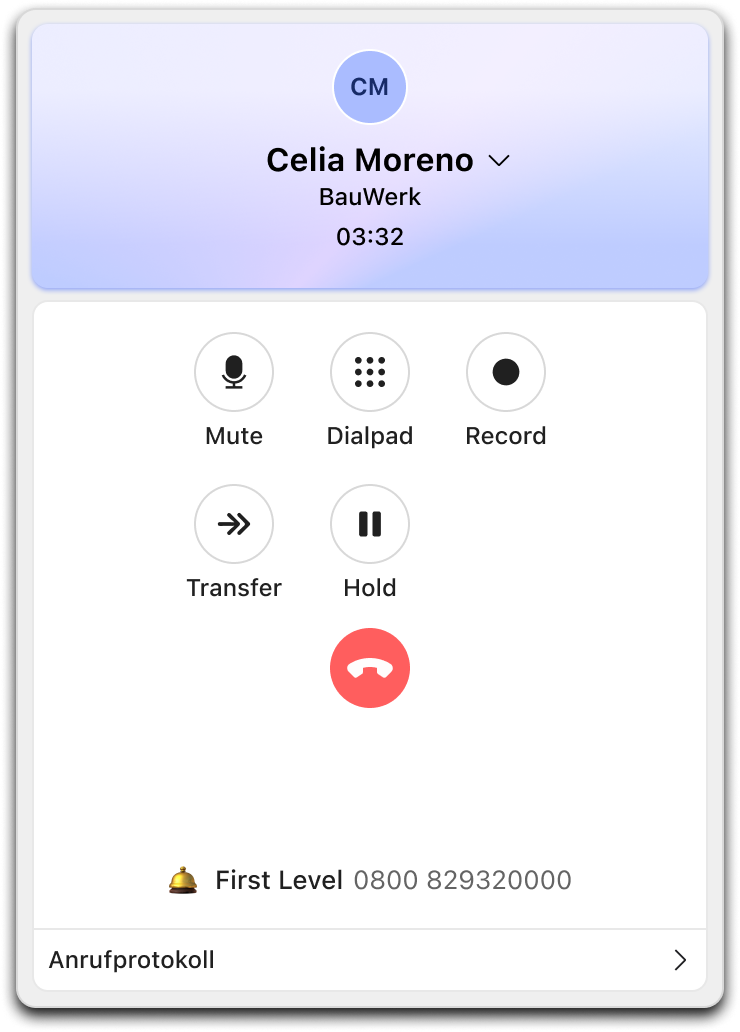
Answer an incoming call or start a new call. Then click **Transfer**.
Start a transfer during an active call
Search for a contact or enter the desired phone number. Select the transfer destination and click **Start transfer**.

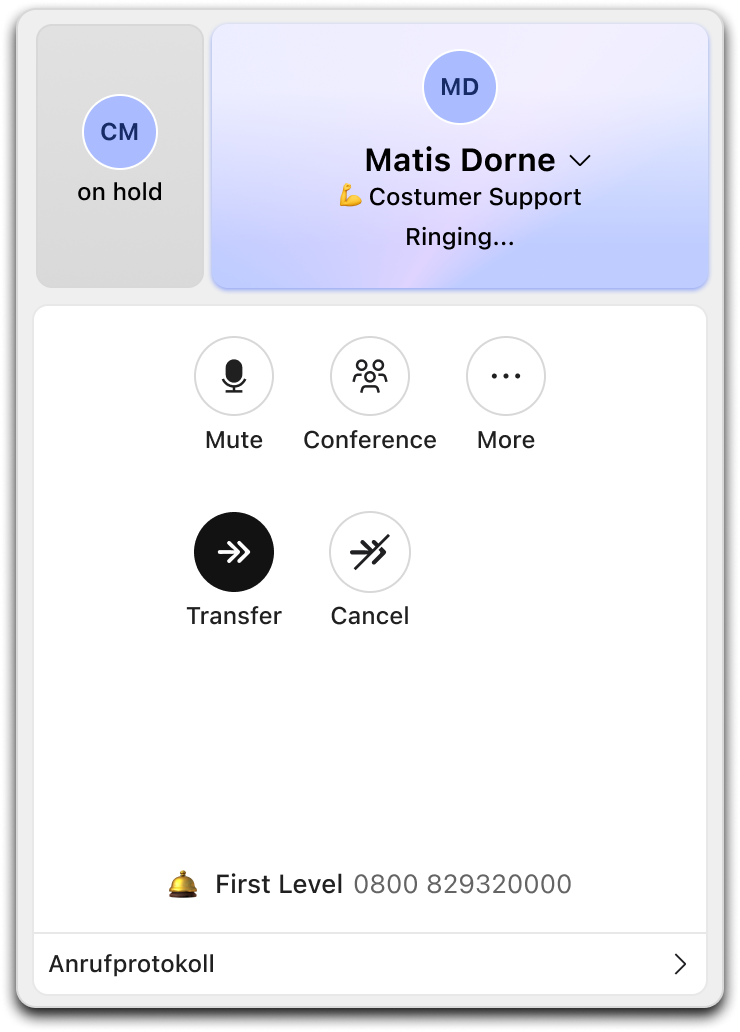
The sipgate app now calls the transfer destination. The person you were previously speaking to is placed on hold.
The participant tile shows both people. The app indicates whom you are currently speaking to and who is on hold. Click the other person to switch between the calls.
Switch between the two call participants
Once the transfer destination has answered, you can briefly explain the reason for the call. You then have the following options:
* **Transfer:** Connects the two other participants and ends your own call.
* **Conference:** Connects all three participants in a conference call.
* **Cancel:** Ends the transfer and returns you to the original call.
You can find additional call functions under **More**.
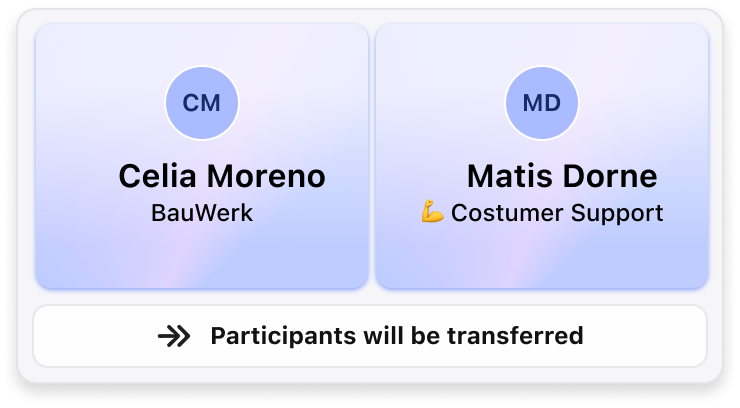
After a successful transfer, the two other participants are connected. A brief confirmation appears.
Successful transfer
{% hint style="info" %}
A conference call is currently limited to a maximum of three participants.
{% endhint %}
{% endtab %}
{% endtabs %}
#### Starting a Three-Way Conference on iPhone or Android
The steps for creating a three-way conference are the same on both iOS and Android. During a call, open the keypad and enter **\*3** followed by a speed dial or phone number (**\*3SpeedDial#** or **\*3PhoneNumber#**). Confirm the transfer with **#**. When the third party answers, press **\*5** to start the conference.
#### How to Transfer Calls on iPhone/Android
The process is identical for both iOS and Android. The following example shows how to transfer a call on an iPhone. Answer an incoming call and tap **Add**.\
Enter a name from your contacts or type in a phone number in the search bar. The sipgate app will call the new number while the original caller is placed on hold.\
Once the target number answers, briefly communicate the reason for the transfer.\
Switch between the two calls by tapping the held call (grayed out).\
To connect the calls, tap **Connect & leave**.
{% hint style="warning" %}
**Tip:** Alternatively, you can use keyboard shortcuts in the sipgate app. A full list of shortcuts can be found in this article.
{% endhint %}